
Technology Equipped Classrooms
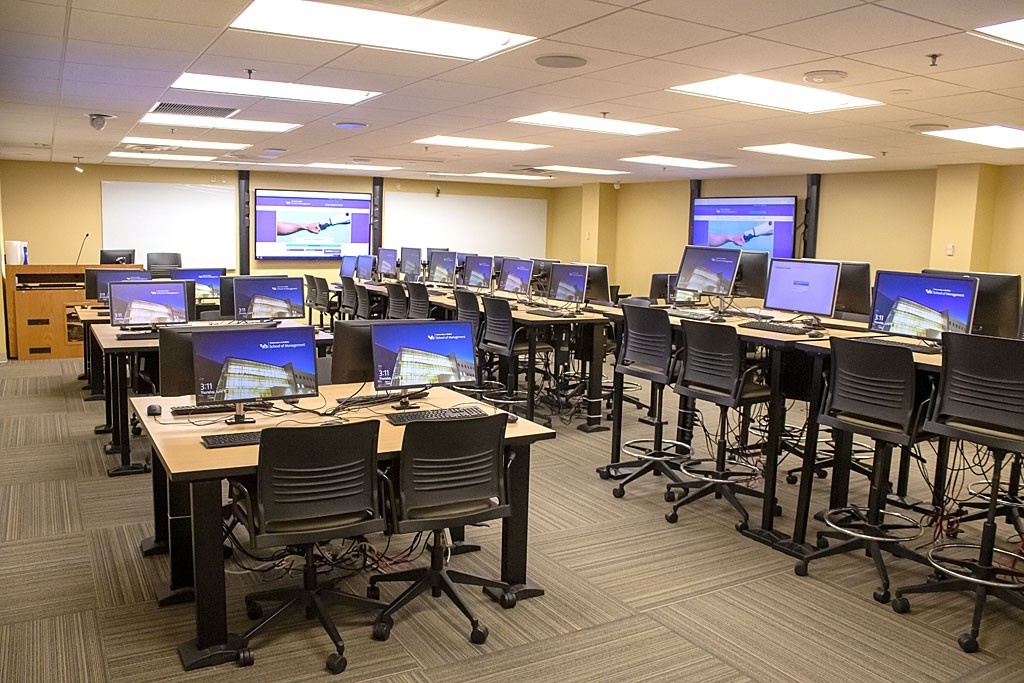
214 Jacobs Management Center classroom
The School of Management has eleven educational technology equipped classrooms (ETEC).
There are nine classrooms in Jacobs Management Center: B30, B32, B34, 106 , 110, 112, 122, 214; and three classrooms in the Alfiero Center: 102, 103, 104
Usage Instructions
Questions:
Contact the IT staff at 716-645-3210 or Email us.
Podium Combinations:
Faculty need to see an IT staff member.
Keys:
Submit a key request online. If you have questions, see Dave Costello, 131 Jacobs Management Center, or Denise Adamski, 134 Jacobs Management Center, during normal business hours (8 a.m. - 5 p.m., Monday through Friday) for keys. Keys must be returned at the end of the semester. To make an appointment, email mgt-keys@buffalo.edu or call 716-645-3210.
Podium Alarms:
Each piece of equipment within the podium cabinet is alarmed. Do not move any device (except the mouse, projector remote control and microphone), since the alarm will sound and alert Public Safety. If the alarm is accidentally triggered, notify both Public Safety and the school's IT staff immediately. Consultants in the Jacobs Computer Lab (716-645-3332) can contact the IT staff.
Podium:
Each podium is outfitted with a Creston touchscreen system that controls all equipment in the cabinet, as well as the projector. Press the "Push to Begin" button on the touchscreen to enable the system.
Projectors
- Turn on projector using the "Projector On" button located on the touch panel screen.
- Video mute is available on the touch panel.
- The projector will automatically shut off when the cabinet door closes. In B30, B32 and B34, select System Shutdown on the touch screen.
Steps to Follow for Each Class
- Powering on the classroom - open technology cabinet or enter 4digit code on touch panel if there is no technology cabinet. Access is turned on to every device. Select "Projector On" on the touchscreen to turn on the projector.
- To log into the internal pc, the username and password are located on the teaching podium. Do not use your UBIT account credentials.
- To switch from one device to another, select the appropriate "Input" button along the top of the touchscreen.
- At the end of session, remove your portable storage device, clickers, etc.
Contact Us
Information Technology and Facilities
School of Management
University at Buffalo
131 Jacobs Management Center
Buffalo, NY 14260-4010
Tel: 716-645-3210
Fax: 716-645-2341
mgt-it@buffalo.edu
UBIT Services Status

University IT News
Help
Faculty and staff, need assistance with the school technology or infrastructure?